Windows keyboards for typing with Unicode Latin-script Pali fonts
Typing Pali on Windows requires a way to map keystrokes to Pali diacritical characters. These keyboards were created with the Microsoft Keyboard Layout Creator (MSKLC), a tool that was once freely available from Microsoft but has since been discontinued. The keyboards themselves still work on modern versions of Windows (10 and 11).
| Pali Keyboard | Based on | Language | Download |
|---|---|---|---|
| English (US) + Pali | US | English (United States) | enuspali.zip |
| English (UK) + Pali | United Kingdom | English (United Kingdom) | enukpali.zip |
| Nederlands (NL) + Pali | Dutch | Dutch (Netherlands) | nlnlpali.zip |
| Français (FR) + Pali | French | French (France) | frfrpali.zip |
| Deutsch (DE) + Pali | German | German (Germany) | dedepali.zip |
| Español (CL) + Pali | Spanish | Spanish (Chile) | esclpali.zip |
| Latin American (CL) + Pali | Latin American | Spanish (Chile) | laclpali.zip |
| Español (MX) + Pali | Spanish | Spanish (Mexico) | esmxpali.zip |
| Español (ES) + Pali | Spanish | Spanish (Spain) | esespali.zip |
English (UK) + Pali: Keystrokes for ā, ī, and ū overwrite á, í, and ú. Switch to the standard English (UK) keyboard to type those.
Deutsch (DE) + Pali: Keystroke for ṃ overwrites the micro sign (µ). Switch to the standard German keyboard to type it.
Nederlands (NL) + Pali: Keystroke for ṃ overwrites the micro sign (µ). Switch to the standard Dutch keyboard to type it. Keystrokes for ṛ and ṣ (Hindi/Sanskrit) are not included because they would overwrite ¶ and ß.
Installation instructions for Windows 10 / 11
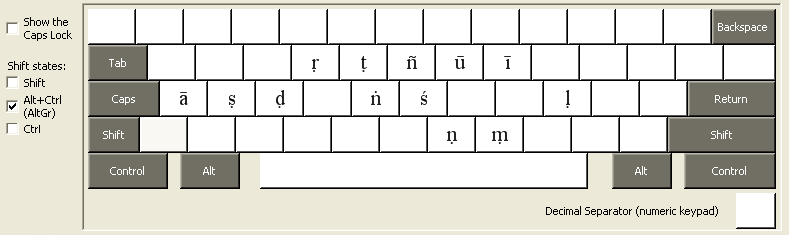
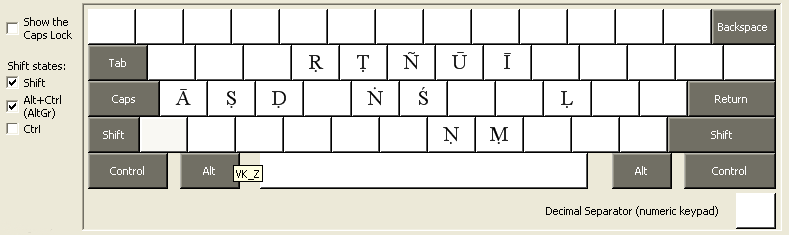
| Character | Keystroke |
|---|---|
| Ñ | Ctrl + Alt + Shift + Y |
| ñ | Ctrl + Alt + Y |
| Ā | Ctrl + Alt + Shift + A |
| ā | Ctrl + Alt + A |
| Ī | Ctrl + Alt + Shift + I |
| ī | Ctrl + Alt + I |
| Ś | Ctrl + Alt + Shift + H |
| ś | Ctrl + Alt + H |
| Ū | Ctrl + Alt + Shift + U |
| ū | Ctrl + Alt + U |
| Ḍ | Ctrl + Alt + Shift + D |
| ḍ | Ctrl + Alt + D |
| Ḥ | Ctrl + Alt + Shift + V |
| ḥ | Ctrl + Alt + V |
| Ḷ | Ctrl + Alt + Shift + L |
| ḷ | Ctrl + Alt + L |
| Ṃ | Ctrl + Alt + Shift + M |
| ṃ | Ctrl + Alt + M |
| Ṅ | Ctrl + Alt + Shift + G |
| ṅ | Ctrl + Alt + G |
| Ṇ | Ctrl + Alt + Shift + N |
| ṇ | Ctrl + Alt + N |
| Ṛ | Ctrl + Alt + Shift + R |
| ṛ | Ctrl + Alt + R |
| Ṣ | Ctrl + Alt + Shift + S |
| ṣ | Ctrl + Alt + S |
| Ṭ | Ctrl + Alt + Shift + T |
| ṭ | Ctrl + Alt + T |
Printable charts for English (US) + Pali and keyboards with the same layout (e.g. UK):
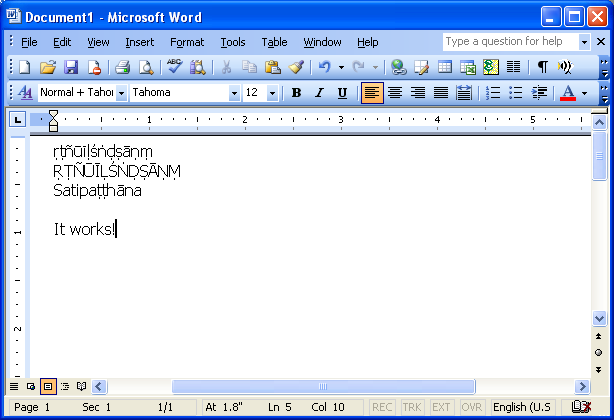
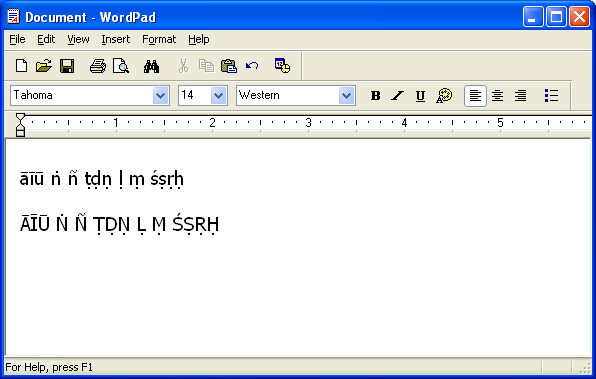
After installation, open any text editor (Notepad, WordPad, etc.) and switch to a font that supports Pali diacritics. Most modern system fonts (Segoe UI, Arial, Times New Roman) include the necessary Unicode characters. Use the keystrokes listed above to verify that diacritics appear correctly.
Word's built-in keyboard shortcuts may override some Pali keystrokes (e.g., Ctrl+Alt+R is normally assigned to the ® symbol). If a Pali keystroke doesn't produce the expected character in Word, you'll need to remove the conflicting shortcut assignment. There are about 8 conflicts.
To fix: open Word's keyboard customization (File > Options > Customize Ribbon > Keyboard Shortcuts), find the conflicting assignment, and remove it. Repeat for each affected keystroke.